Remove Private Pages from PDFs Online: Easily Split PDFs Without Buying Premium Versions
Today, with the increasing popularity of digital office tools, PDF files have become the preferred format for cross-platform document sharing. Whether it's business contracts, financial statements, product manuals, or personal resumes, the PDF format perfectly preserves original layouts and font designs. However, precisely because of the high stability and un-editable nature of PDF files, we often face many challenges when we need to tweak them. One of the most common needs is: how to quickly remove private pages or unnecessary content from a PDF file?
Usually, professional PDF editor software requires users to purchase an expensive premium subscription to unlock the "delete pages" or "extract pages" feature. For ordinary users who only need to process a document occasionally, this is undoubtedly a poor investment. Fortunately, with the advancement of modern web technologies, we can now completely solve this problem online, and without paying any fees. This article will delve into why we need to split PDFs, traditional incorrect processing methods, and how to use safe and reliable online tools to complete this task for free.
Why Do You Need to Remove Specific Pages from a PDF?
In actual work and life, deleting specific pages in a PDF is a very rigid demand, which usually involves the following key scenarios:
1. Protecting Business Secrets and Personal Privacy
When sending files to external clients or partners, the original document may contain information not suitable for public disclosure. For example, a complete corporate financial report might include internal executives' compensation details; an appendix to a business cooperation agreement might involve confidential data of other clients; a personal resume attachment might contain a copy of an ID card or a detailed home address. Before sending these files out, thoroughly removing the pages involving private information is a necessary step to protect privacy and business secrets.
2. Reducing File Size and Improving Transmission Efficiency
Sometimes, although a PDF document only has a few pages that we really need, it might be an operation manual or product catalog hundreds of pages long. Such huge files not only take up storage space but are also easily rejected by systems due to their large size when sent via email or instant messaging software. By splitting and extracting useful pages, we can significantly reduce the file size. If you not only need to reduce the PDF size but also optimize the image assets in the file, you can use our image compression tool to further improve file loading speed and transmission efficiency.
3. Extracting Essential Content to Improve Communication Efficiency
In daily communication, sending a two-hundred-page report to someone and asking them to "refer to page 50" is far less direct and efficient than simply extracting that crucial page and sending it to them. Splitting relevant pages separately allows readers to grasp the key points immediately, lowering communication costs. This precise method of information transmission is particularly important in the fast-paced modern workplace.
Common Incorrect Practices and Potential Security Risks
Faced with the need to delete PDF pages, many people, unable to find suitable tools, often resort to some seemingly feasible but actually risk-filled "workarounds." These incorrect practices are not only inefficient but may also bring serious consequences.
Incorrect Practice 1: Converting PDFs to Images Before Deleting
This is a very common practice. Some users convert multi-page PDF files into images page by page, then delete the unneeded images in a folder, and finally recombine the remaining images into a PDF. This approach has several fatal flaws: First, the original vector text and searchable text in the PDF become pure images, and recipients can no longer copy the text content. Second, the conversion process causes a sharp drop in document clarity, and it may be very blurry when printed. If you just need to handle the background of a single image, you can use a professional background removal tool, but this is absolutely not suitable for handling long text-based PDF documents.
Incorrect Practice 2: Printing and Re-scanning
This is one of the most time-consuming and labor-intensive physical processing methods. Some users choose to print all pages except the private ones on paper, and then use a scanner to scan them back into a new PDF file. This not only wastes paper and ink, greatly increasing office costs, but the scanned file sizes are usually huge and prone to issues like skewing and shadows. For purely electronic digital documents, this is undoubtedly a technological regression.
Incorrect Practice 3: Randomly Using Unknown Third-Party Online Tools
For convenience, many people casually search for "online PDF delete pages" in search engines and click on a free website ranked at the top. These websites usually require users to upload PDF files to their servers for processing. This brings huge privacy leakage risks. If your file contains sensitive financial data or personal identity information, uploading it to an uncertified third-party server is very dangerous. You never know if these servers will keep backups of the files or sell the data to third parties.
How to Safely and Efficiently Split PDFs for Free?
So, since traditional methods and unknown websites are unreliable, how should we safely and freely remove and split PDF pages? The answer is to use modern online tools based on browser local processing technology.
With the development of WebAssembly and modern frontend frameworks, today's online PDF tools can load complex processing logic directly into your browser to execute. This means that the entire process of file reading, splitting, deleting pages, and regenerating is all done locally on your own computer, and the file will absolutely not be uploaded to any external servers. This pure-frontend processing method not only ensures processing speeds comparable to local desktop software but also provides 100% privacy and security guarantees.
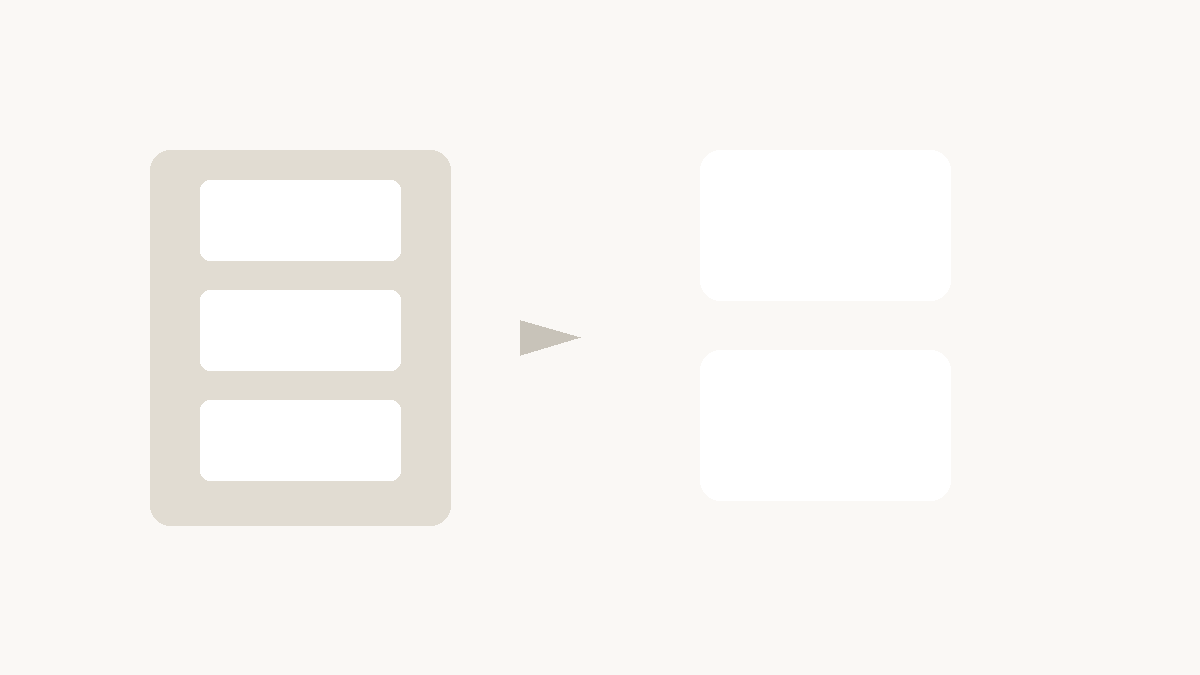
Here are the specific steps to remove PDF pages using a localized online tool:
Step 1: Open a Pure-Frontend PDF Processing Tool
Please ensure that the online tool you choose clearly states the security declaration: "Files are processed locally and not uploaded to servers." Open the tool's webpage in your browser. Because the processing is done locally, even in an offline environment, as long as the webpage has loaded, the tool can still operate normally.
Step 2: Import Your PDF File
You can drag and drop the PDF file you need to process directly into the designated area on the webpage, or click the "Choose File" button to select it from your local directory. The file loading speed is very fast because there is no waiting time for network uploading. After loading, the tool will automatically parse the PDF file structure and display each page as a thumbnail on the interface.
Step 3: Preview and Select Pages to Modify
In the visual page grid, you can quickly browse all pages by scrolling your mouse wheel. Most excellent tools support click-to-zoom preview, ensuring you won't accidentally delete important content.
For pages you need to delete, simply click the "Delete" icon in the upper right corner of the page, or select them and click the "Delete Selected Pages" button at the top. If you only need to extract a few specific pages, you can directly check these pages and then select "Extract Selected Pages Only."
Step 4: One-Click Export and Save
After completing the page selection and deletion, click the "Export PDF" or "Save File" button on the interface. The browser will immediately generate a new PDF file locally with the private pages removed, and automatically trigger the download. The whole process takes only a few seconds, and there is no need to register an account, let alone pay any fees to purchase a so-called premium version.
Advanced Processing Tips After Splitting and Extracting
After you have successfully removed unneeded pages and saved a new PDF file, you may also need to further optimize and adjust the document to meet sharing needs in different scenarios.
Tip 1: Optimize Extracted Image Pages
If the pages you extracted contain a large number of high-definition photographs or design drafts, you may find that the extracted PDF file is still very large. At this time, if the page is mainly composed of images, you can consider exporting the images from that page and using an image resize tool to appropriately scale the image resolution, and then combine them into the final document. This is especially effective for presentation slides that need to load quickly on the web.
Tip 2: Merge Extracted Pages from Different Files
Sometimes, we not only need to delete a few pages from File A, but also insert a few pages from File B into File A. Online tools based on local processing usually also support multi-file operations. You can first split and extract the two files separately, save the required pages as independent temporary PDF files, and then use the merge function to stitch them together into a complete final document in the desired order. During this process, all page directories and hyperlinks are usually well preserved.
Tip 3: Add Watermarks and Encryption Protection
Before deleting private pages and preparing to send the file to external personnel, adding an extra layer of security protection to the document is also a wise move. Before generating the final PDF, you can add your company's exclusive watermark to declare the copyright ownership of the document. At the same time, for files that still have a certain level of confidentiality, you can set an open password to ensure that only recipients who know the password can read the document content.
Frequently Asked Questions
Q: After deleting pages in a PDF, will the original page layout and text formatting change?
A: No. High-quality PDF splitting tools only remove the data structure of that page from the file container when deleting a page, and will not perform any re-encoding or compression on the content, font, layout, or image quality of the remaining pages. Therefore, the pages you keep will be exactly the same as the original document, and layout chaos will absolutely not occur.
Q: My PDF file is encrypted, can I still split the pages?
A: This depends on the type of encryption. If your PDF file is set with an "owner password" (also called a permissions password), which restricts editing and printing, most advanced tools can help you split it after lifting the restrictions; if the file is set with a "user password" (i.e., an open password), you must first enter the correct password to unlock the document before you can view and delete its pages.
Q: Can I delete dozens or even hundreds of pages at once?
A: Of course. You can quickly select multiple consecutive pages by holding down the Shift key on your keyboard, or directly enter the page number range you need to delete in the page number input box (for example: pages 10-50). This can greatly improve efficiency when processing super-large documents.
Conclusion
Removing private pages or unneeded content from PDF files is not only a necessary measure to protect personal privacy and business secrets but also an effective way to improve daily communication efficiency. In the past, we might have been troubled by processing PDFs due to expensive desktop software or concerns about the security risks of online tools. Today, with the help of safe and reliable pure localized online processing tools, anyone can complete the splitting and extraction of PDF pages at zero cost and high efficiency.
Say goodbye to those incorrect practices that damage file quality, and refuse to pay high subscription fees for an occasionally used feature. By mastering modern digital document processing skills, along with auxiliary tools like image resizing, you will be able to navigate the wave of digital offices with ease and effortlessly handle various complex document processing needs. We hope the methods shared in this article can bring tangible convenience to your work.